

Setup
In Figma
1
Open Account settings
Click your profile icon in the top-left corner and select Settings.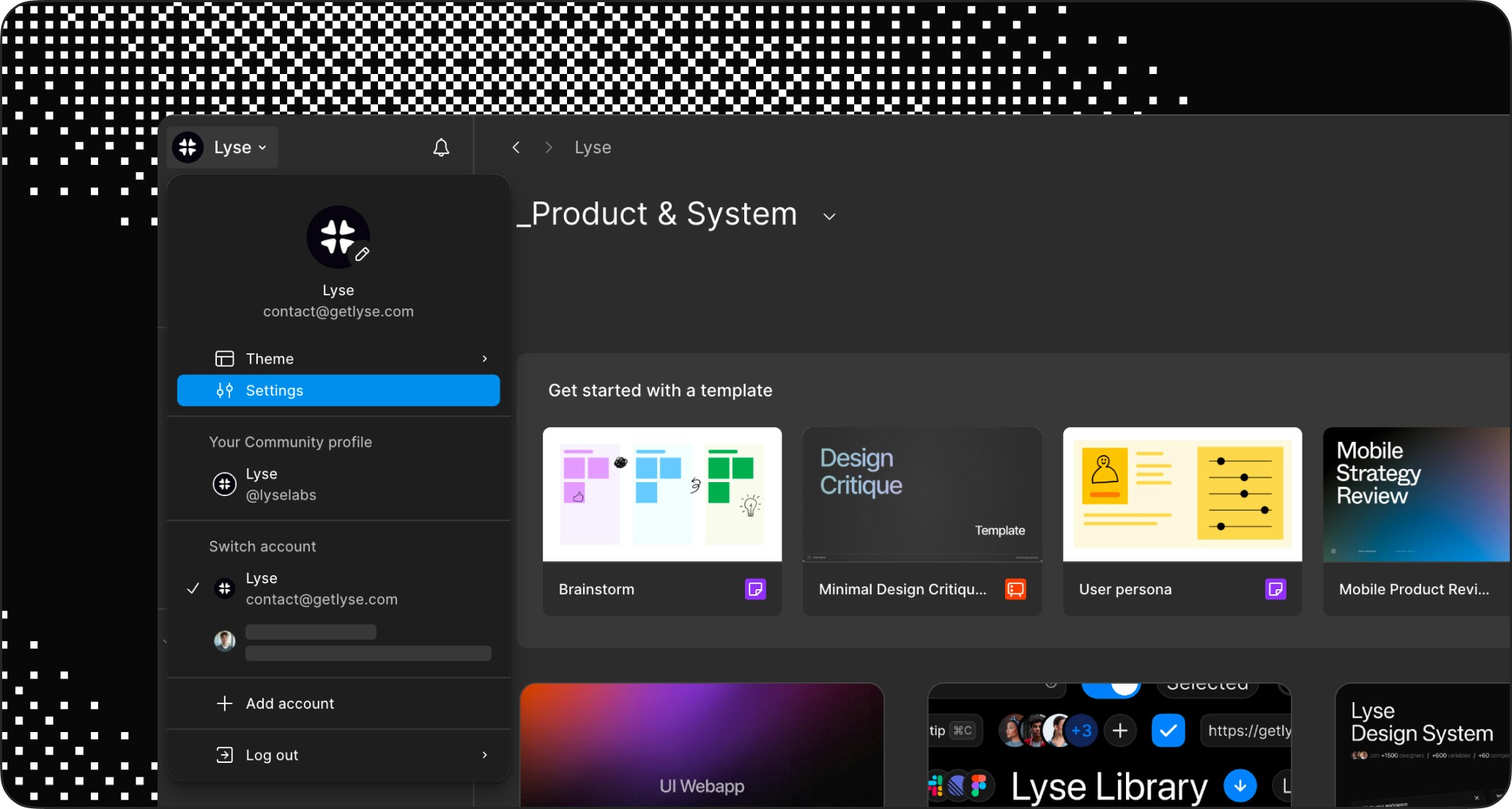
2
Go to Personal access tokens
In the menu, find the Personal access tokens section in 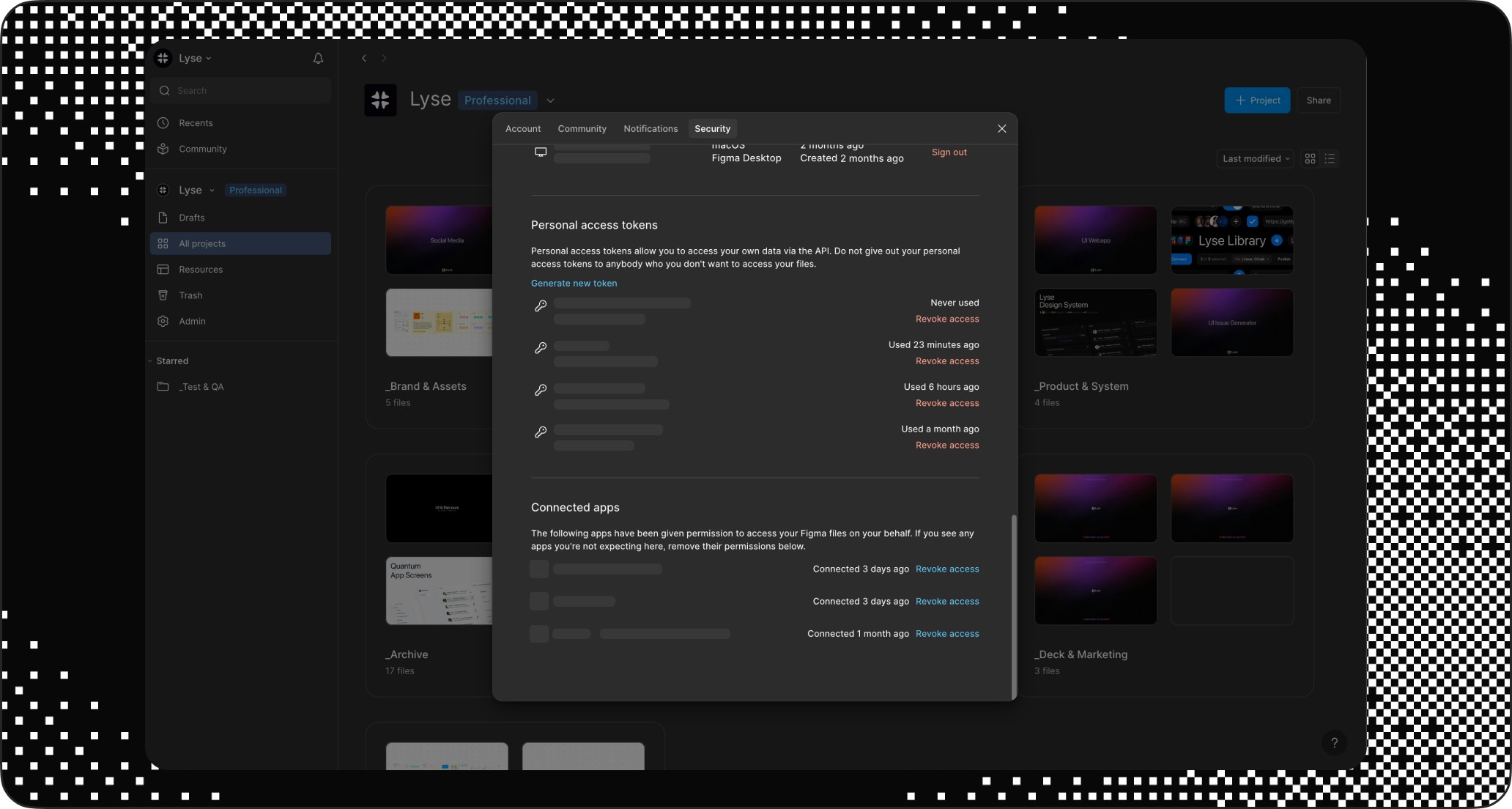
security.3
Create a new token
Click Generate new token and give it a clear name like 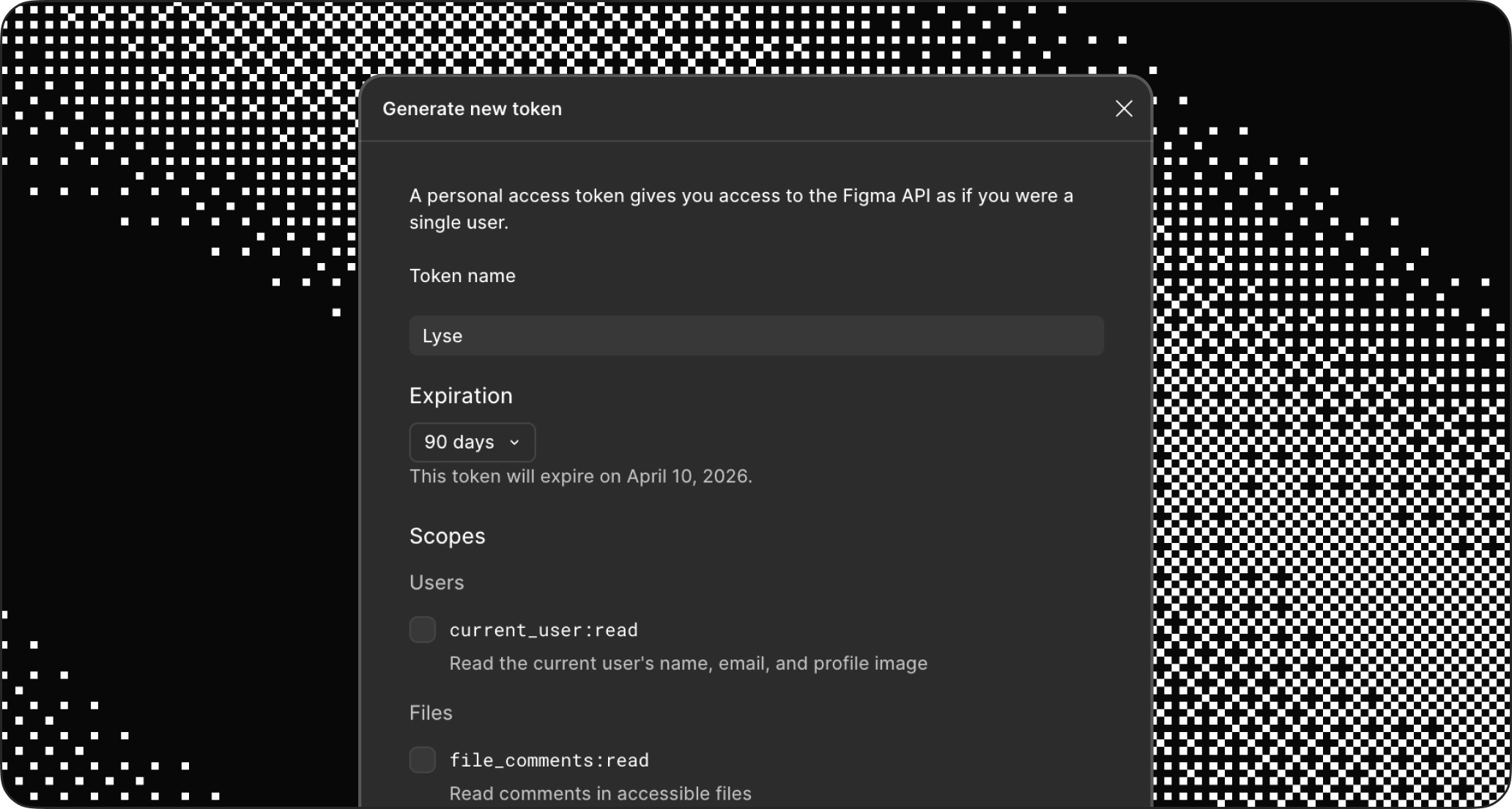
Lyse , and set expiration to 90 days to avoid recreating it too often.4
Select the required scopes
Enable these permissions:
current_user:readfile_content:readfile_metadata:readfile_version:readlibrary_assets:readlibrary_content:readteam_library_content:readprojects:readwebhook:readwebhook:write
5
Copy the token
Click Generate and copy the token immediately—you won’t be able to see it again.
In Lyse App
1
Open Figma integration
Go to Integrations > Figma in the Lyse webapp.
2
Paste your Figma token
Enter the Personal Access Token you just copied from Figma.
3
Add your Team ID
Find it in your Figma team URL from the web: 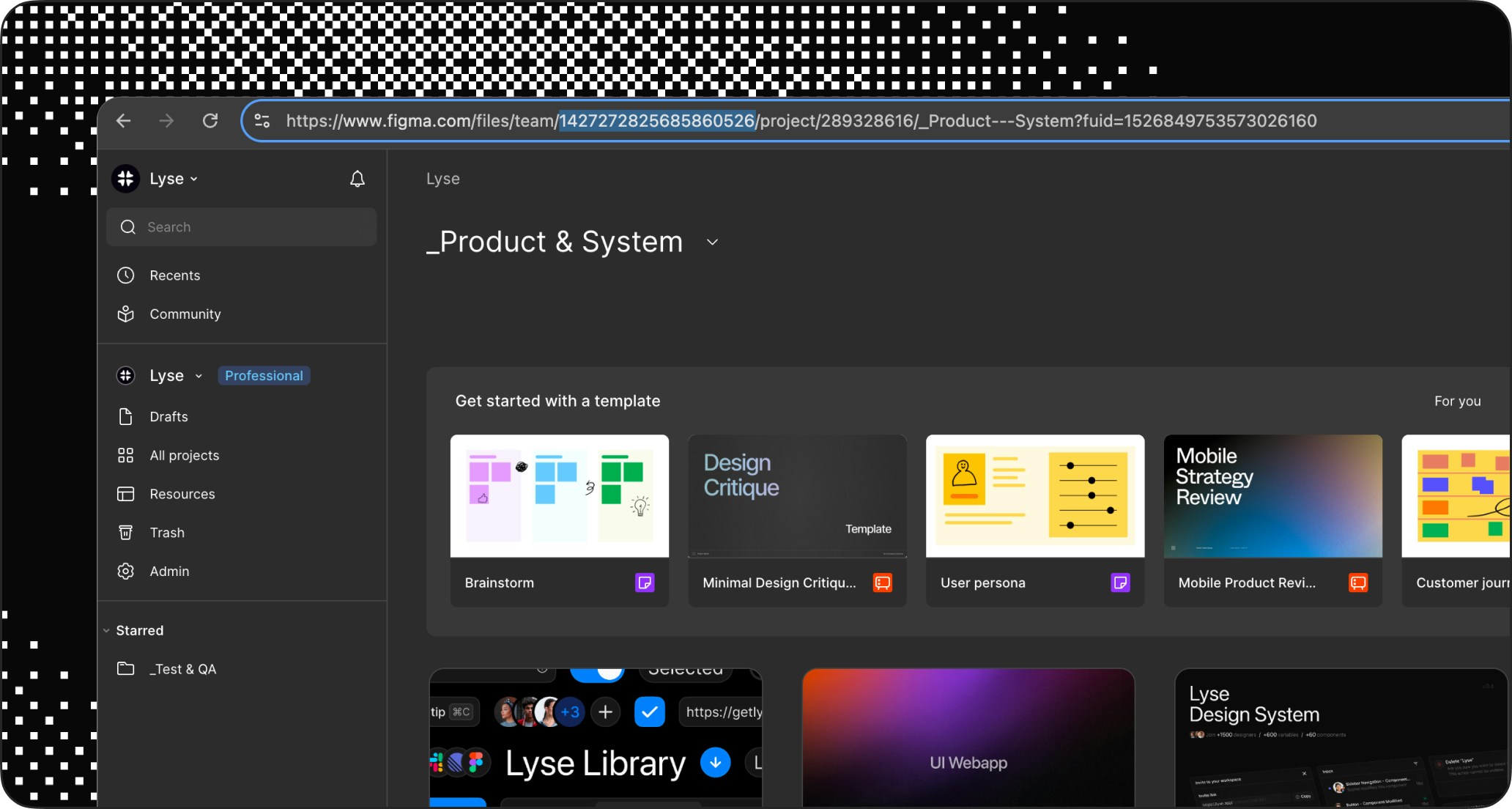
https://www.figma.com/files/team/YOUR_TEAM_ID_HERE/...4
Select your Project
Choose the Project within your Team that contains your Design System file.
5
Select your Library File
Pick the file you want to sync from the dropdown. Large libraries can take a few minutes. When completed, the library appears as Connected.
Connect variables with the plugin
Open Figma and run the Lyse plugin on the file that stores your variables (same DS file or a separate “Foundations” file). Link your variable collections once, and re-run the plugin whenever you change them. From then on, every library publish lets Lyse detect created/updated/deleted components and variables and turn them into clear, contextual tasks for your developers.Important: This step is required to store variable data and link it with your components. If variables change later, run the sync again to keep mappings accurate.
1
Copy your licence key in Lyse
Go to the Account page in the Lyse webapp and copy your licence key.
2
Open the Lyse plugin
Run the Lyse plugin on the file that contains your variables and paste your licence key.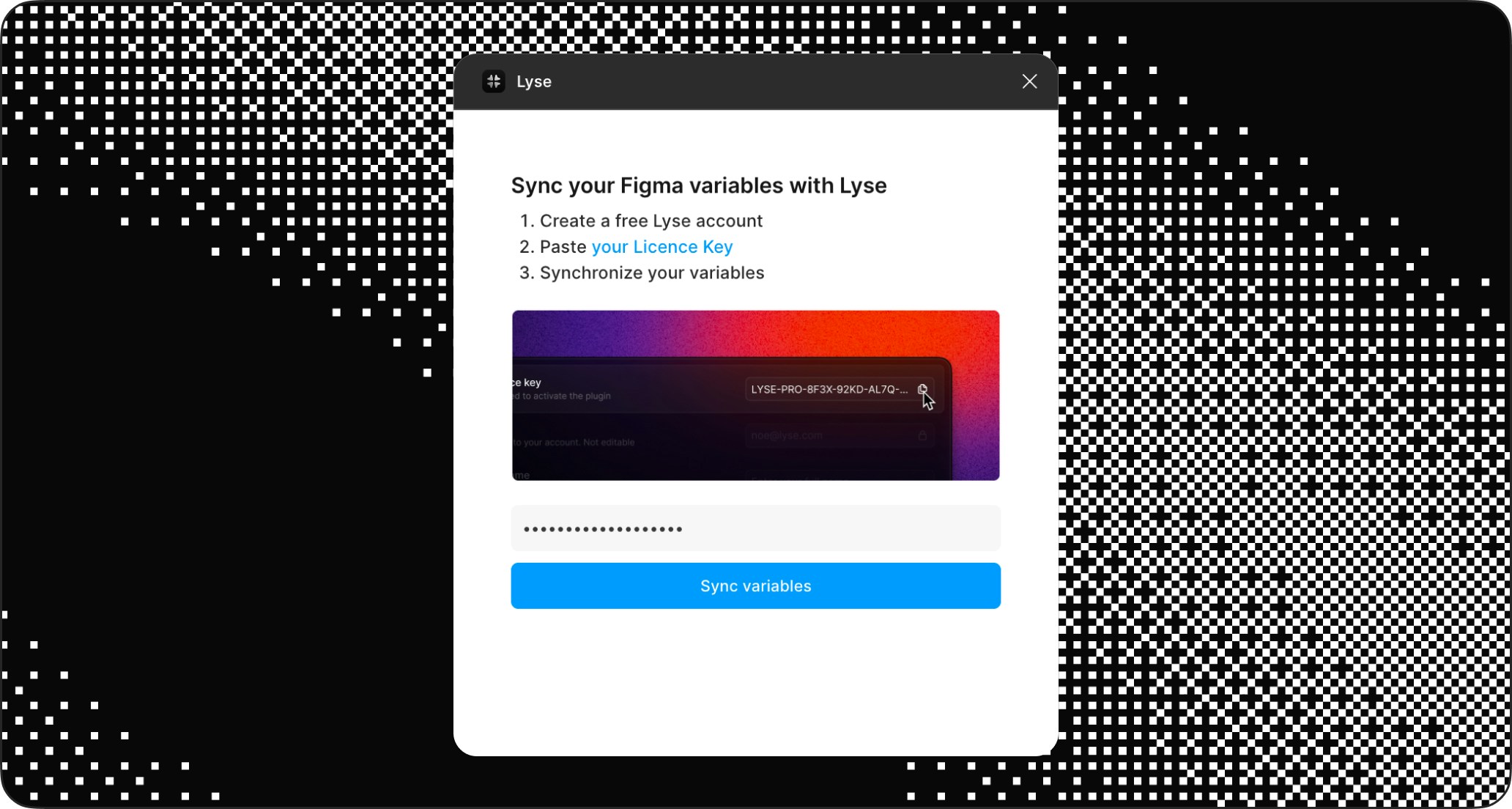
3
Sync your variables
Click Sync to synchronize your local variables from the file. Re-run this step whenever your variables change.
From now on, every library publish triggers Lyse to detect created, updated, or deleted components and variables—and turn them into clear, contextual tasks for your developers.
Publish workflow
Your publishing workflow doesn’t change:- Make changes to components in Figma
- Click Publish library as usual
- Write your Figma publish description (Lyse also reads this)
- Confirm the publish
Tips for better results
Clear names
Lyse uses component names in task titles. Clear names make for clear tasks.Buttonis better thanbtnCardElevatedis better thancard-v2-new
Team publishing
Lyse tracks the file, not the user. Any team member can publish the library and Lyse will detect the changes. Tasks appear in the inbox of the Lyse account that connected the file. You only need one Lyse account connected per file.Review first
Lyse summaries capture most changes accurately. Take a few seconds to check the content before publishing on issue provider. If something needs adjustment, copy the content and modify it manually.Batch actions
When you publish many small changes, use the batch approve feature in your inbox. Select multiple tasks and approve them all at once—perfect for routine updates.Troubleshooting
Not detected
- Verify the file is selected and connected in Integrations > Figma
- Make sure you published the library (not just saved the file)
- Check your Figma connection status
- If multiple Lyse accounts track the same file, webhook conflicts may prevent detection
Missing details
- For complex changes, copy the content and adjust manually
- Use clearer and standardized component names
Variables not showing
- The Figma file containing your local variables hasn’t been synced with the Lyse plugin
- If you recently added or updated variables without re-syncing, they will appear as raw values instead of semantic names
- Open the file in Figma, run the Lyse plugin, and click Sync to update variable mappings
Wrong components
- Lyse tracks published library changes, not regular file edits
- Make sure you’re editing components that are part of the library
- Check that the component is published (not just local)
Duplicate tasks
- Each Figma file should be linked to only one Lyse account
- If multiple accounts track the same file, you may get duplicate or conflicting tasks
- Remove the file from one account in Integrations > Figma