

How the flow works
Everything in Lyse follows the same pattern: Source, AI, Review, Publish.1
Capture
A discussion reaches a conclusion in Slack. A designer publishes library updates in Figma. These are the moments where tasks are born—but usually lost.
2
Analyze
Lyse reads the conversation or detects the design change. It extracts what matters: the problem, the context, the action needed. A draft task is created automatically.
3
Review (optional)
Every generated task lands in your Lyse inbox first. Check the summary, edit if needed, add labels or assignees. You decide what’s worth publishing.On Pro and higher plans, you can skip this step entirely—tasks go straight to your issue tracker automatically.
4
Publish
One click from your inbox, or automatic if you’ve enabled direct publishing. The task appears in Linear, GitHub, Jira, or GitLab—with full context. Your team knows what to do without asking “what changed?”
You’re always in control. Review everything manually, or trust Lyse to publish automatically—your choice.
Sources where tasks come from
Lyse watches two sources for task-worthy content.Slack
When you mention@Lyse in a Slack thread, it reads the entire conversation and extracts what matters.
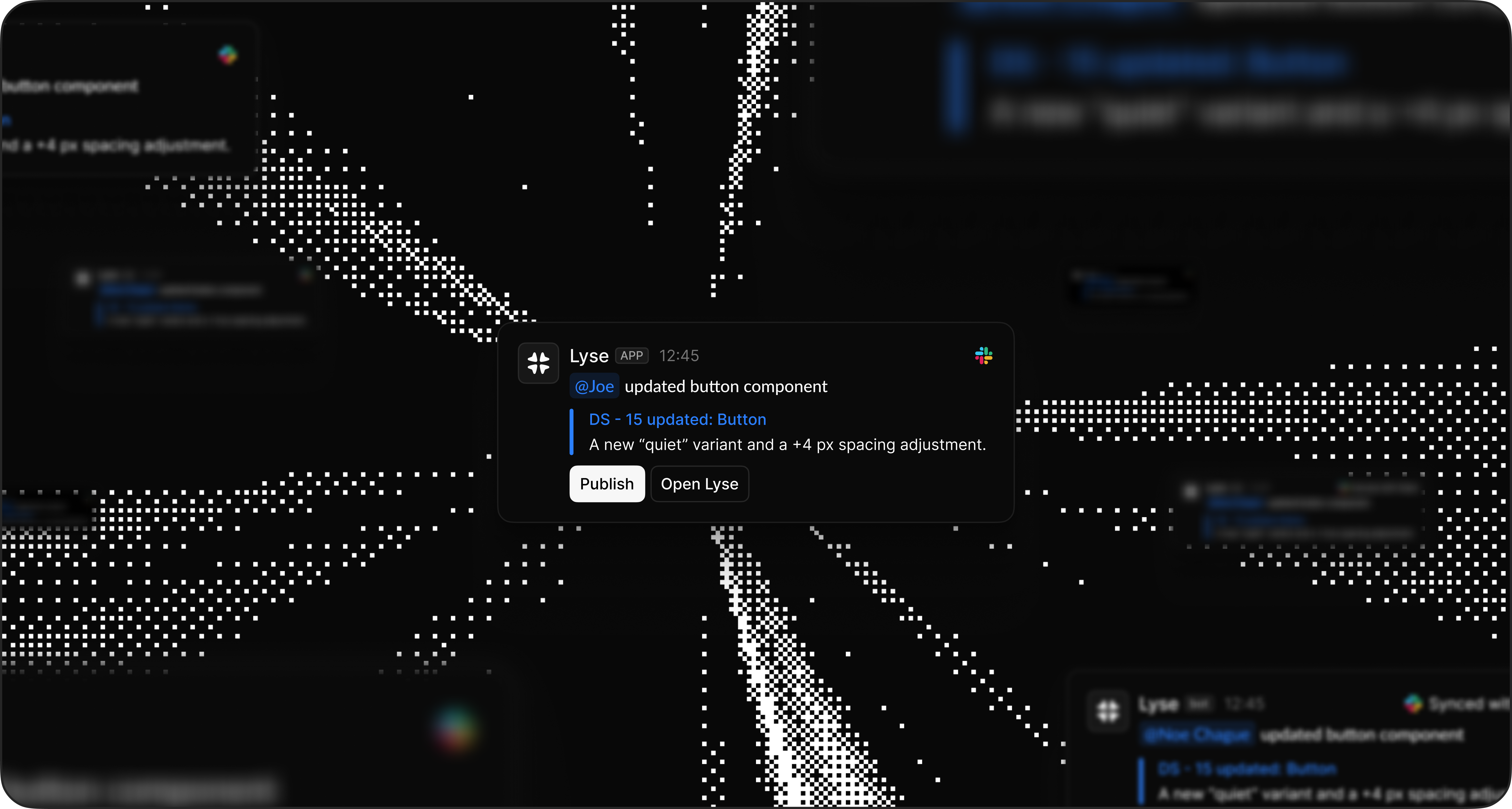
- A discussion happens in Slack—a bug report, feature idea, or decision
- You mention
@Lyse(optionally with instructions like@Lyse create a bug ticket) - Lyse analyzes the thread and identifies the key information
- A task appears in your inbox, ready to review
- Bug descriptions with reproduction steps
- Feature requests with context
- Decisions and action items
- Technical requirements mentioned in discussion
Your team debates a UI issue for 15 messages. Instead of summarizing it yourself, mention @Lyse create a bug task. Lyse reads the thread, extracts the problem description, identifies who reported it, and creates a formatted ticket—all in seconds.
Figma
When you publish a Figma library, Lyse detects what changed and generates tasks automatically.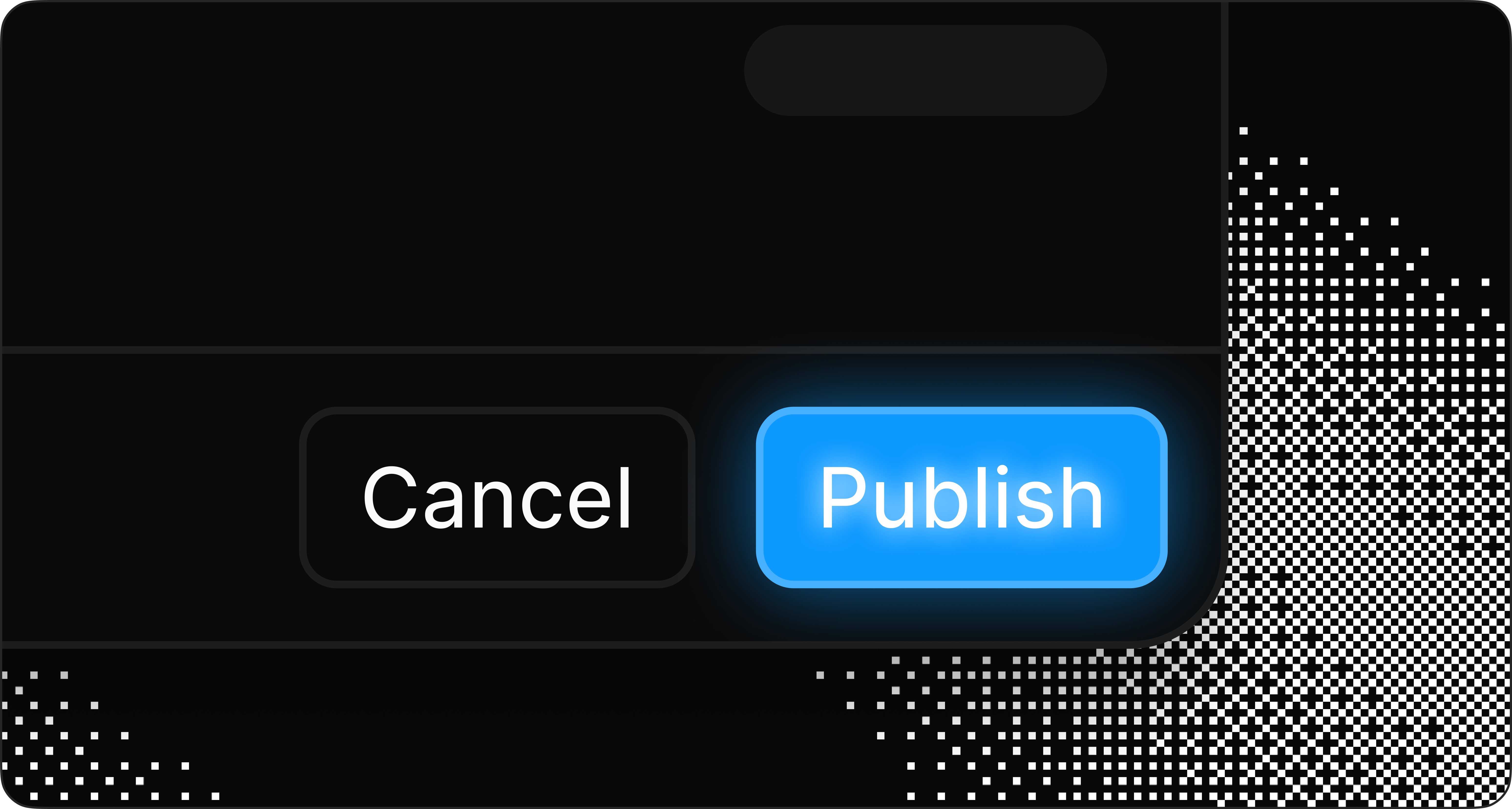
- You make changes to components in your Figma library
- You publish the library in Figma
- Lyse receives a notification
- Lyse analyzes what changed and generates a summary
- A task appears in your inbox for each change
- Component updates (properties, colors, spacing, typography, variants)
- New components added to the library
- Components deleted from the library
You update the padding on your Button component fromlayout-padding-mdtolayout-padding-smand publish. Lyse creates a task: “Button padding reduced. Developers should update the padding value and verify layouts.”
Review before publish
The Reviewer is where all generated tasks land before reaching your team. Think of it as a quality gate.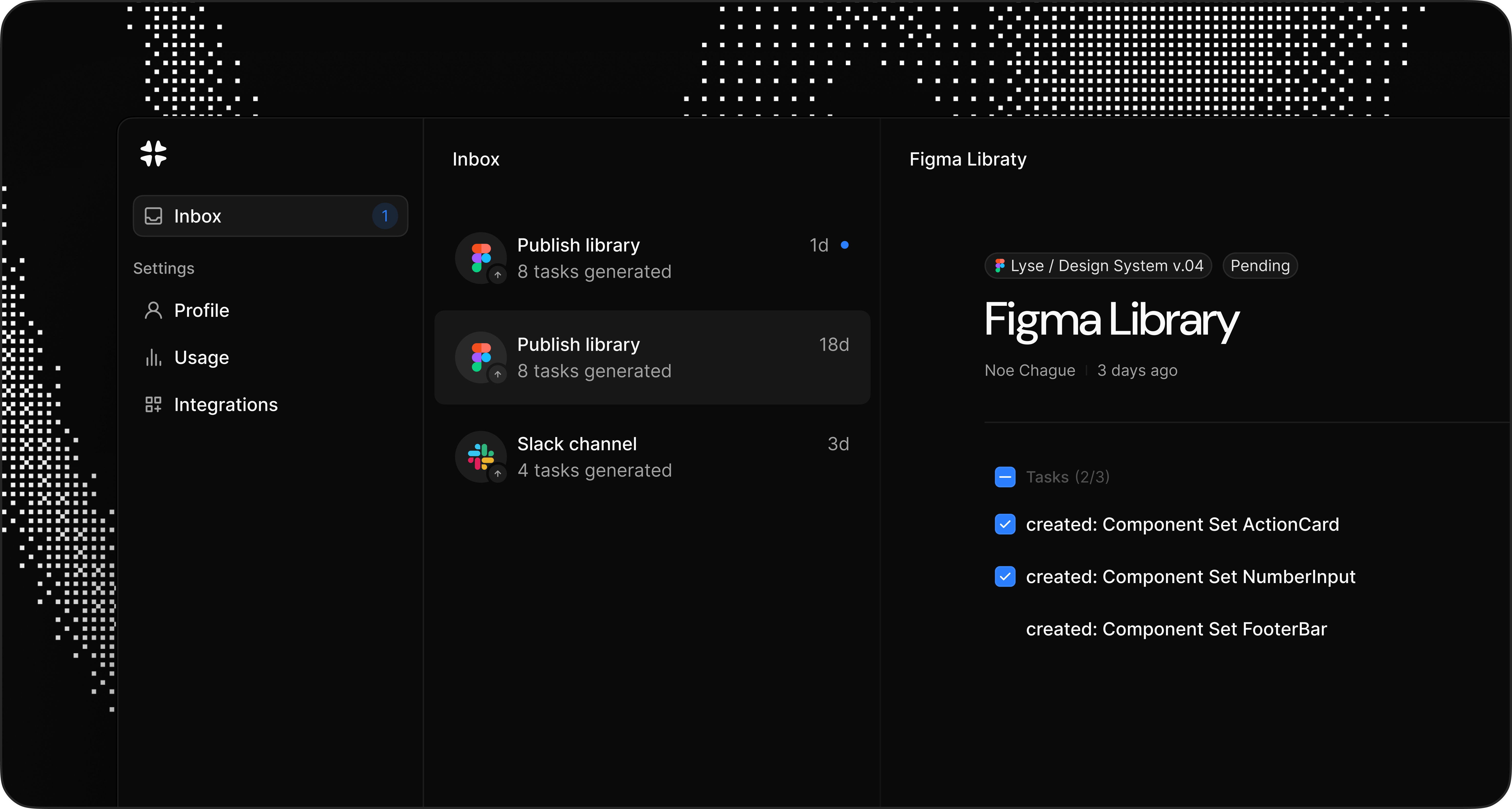
- The source (which Slack workspace or Figma file)
- The AI-generated title and description
- A preview of how it will look in your issue tracker
- Check the AI-generated content before publishing
- Copy the title or description if you want to paste it elsewhere or adjust it manually
- Publish to send it directly to your issue tracker
- Dismiss if the change doesn’t need a task
- Batch publish multiple tasks at once for routine updates
The inbox keeps you in control while eliminating the manual work of writing tasks.
Where tasks are sent
Once you approve a task, Lyse publishes it to your connected issue tracker. Supported destinations- Linear — Create issues in any team, with labels and project linking
- GitHub — Create issues in any repository
- Jira — Create tickets in any project
- GitLab — Create issues in any project
You can connect multiple destinations. For example, design token changes to Linear and component updates to GitHub.
- Title (AI-generated)
- Description with full context
- Project/team (configurable in integration settings)
Coming soon: Auto mode will automatically assign tasks, apply labels, and select the right project/team based on the task context and your workspace structure.
How Lyse understands context
Lyse uses AI to analyze content and generate useful task descriptions. For Slack threads- Reads the full conversation history
- Identifies the main topic and any action items
- Extracts relevant details (error messages, user reports, decisions)
- Formats everything into a clear task structure
- Compares the published version to the previous state
- Identifies what properties changed
- Translates design changes into developer-friendly language
- Suggests what developers should check or update
Example workflow
Here’s a typical workflow combining both sources:1
Monday
Your design system lead updates several components in Figma and publishes. Lyse generates 8 tasks. They review, dismiss 2 minor changes, and publish 6. Those 6 tasks land in Linear.
2
Tuesday
A PM discusses a bug with engineering in Slack. 20 messages later, they have a clear understanding. The PM mentions
@Lyse create a bug task. The task appears in their inbox, they add a priority label, and approve. It’s in Jira 10 seconds later.3
The result
No context lost. No manual copy-pasting. Tasks flow from where work happens to where work is tracked.