

How it works
Quality control before tasks reach your team. Every task generated from Slack threads or Figma publishes lands in your Lyse inbox first. You decide what gets published and what gets dismissed.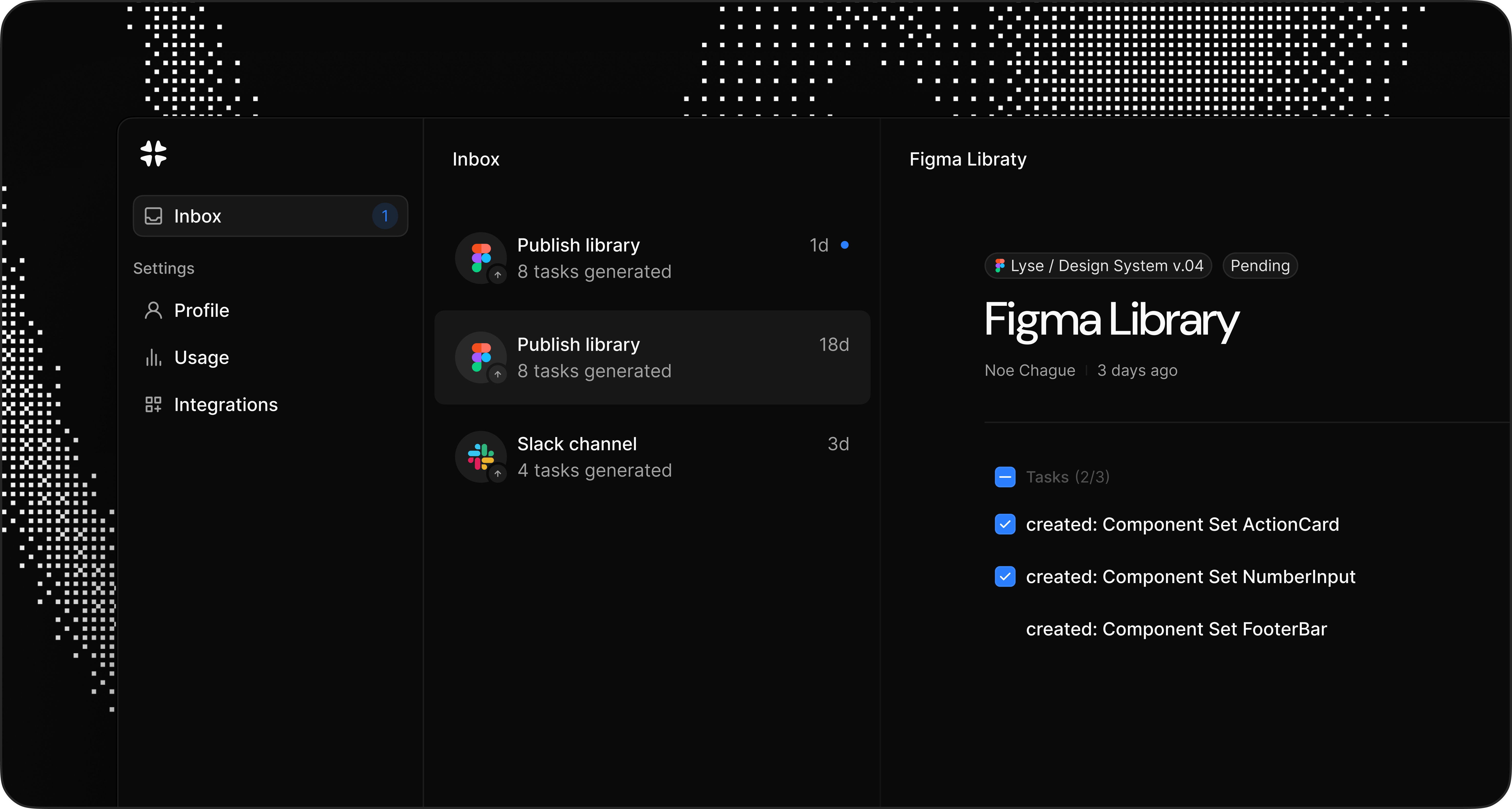
What you can do
Check
- Review the AI-generated title and description. Make sure it captures the right context before publishing.
Copy
- Copy the title or description to paste elsewhere. Useful if you want to adjust the content manually or use it in another tool.
Publish
- Send the task to your connected issue tracker. One click and it appears in Linear, GitHub, Jira, or GitLab with full context.
Dismiss
- Remove the task from your inbox. Use this for changes that don’t need a task or duplicates.
Batch actions
Handle multiple tasks at once. When you have many tasks from a Figma publish, select multiple items and publish or dismiss them together. Perfect for routine updates where you don’t need to review each one individually.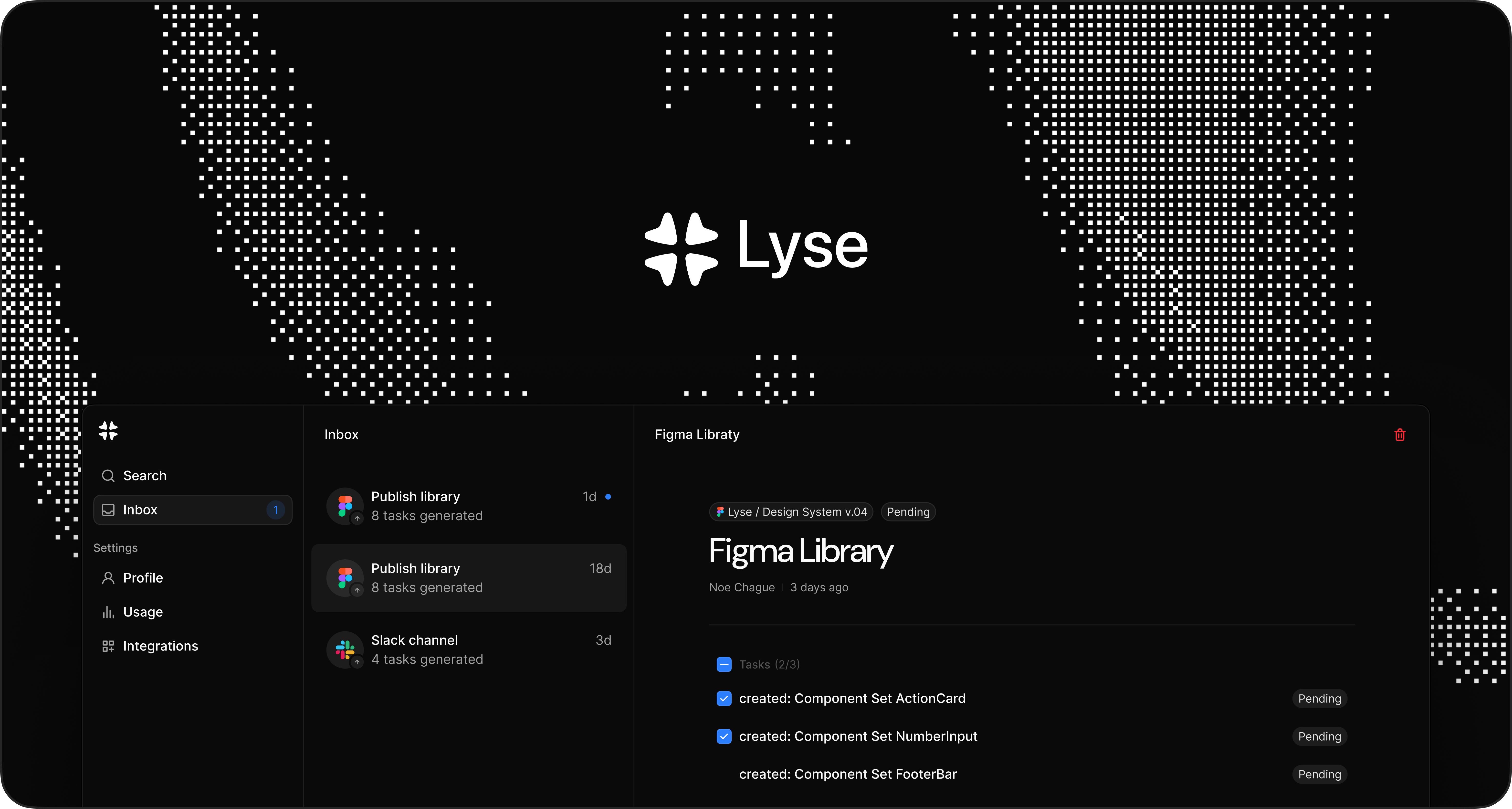
Direct publishing
Skip the inbox on Pro plans and higher. On Pro and higher plans, you can enable direct publishing. Tasks go straight to your issue tracker without stopping in the inbox. You stay in control with the option to switch back to manual review anytime. To enable direct publishing:- Go to Account
- Toggle Auto Generation
on - New tasks will skip the inbox and publish automatically
Tips
Regular review
Check your inbox regularly to keep tasks flowing. A backlog of unreviewed tasks means context sitting idle.Trust Lyse
Lyse summaries are designed to capture context accurately. Most tasks can be published without changes.Troubleshooting
Inbox empty
- Check that your sources (Slack, Figma) are connected
- For Slack, make sure you mentioned
@Lysein a thread - For Figma, make sure you published the library (not just saved)
Can’t find a task
- Tasks are sent to the Lyse account that connected the source
- Check your Slack workspace or Figma file is linked to your account