

How it works
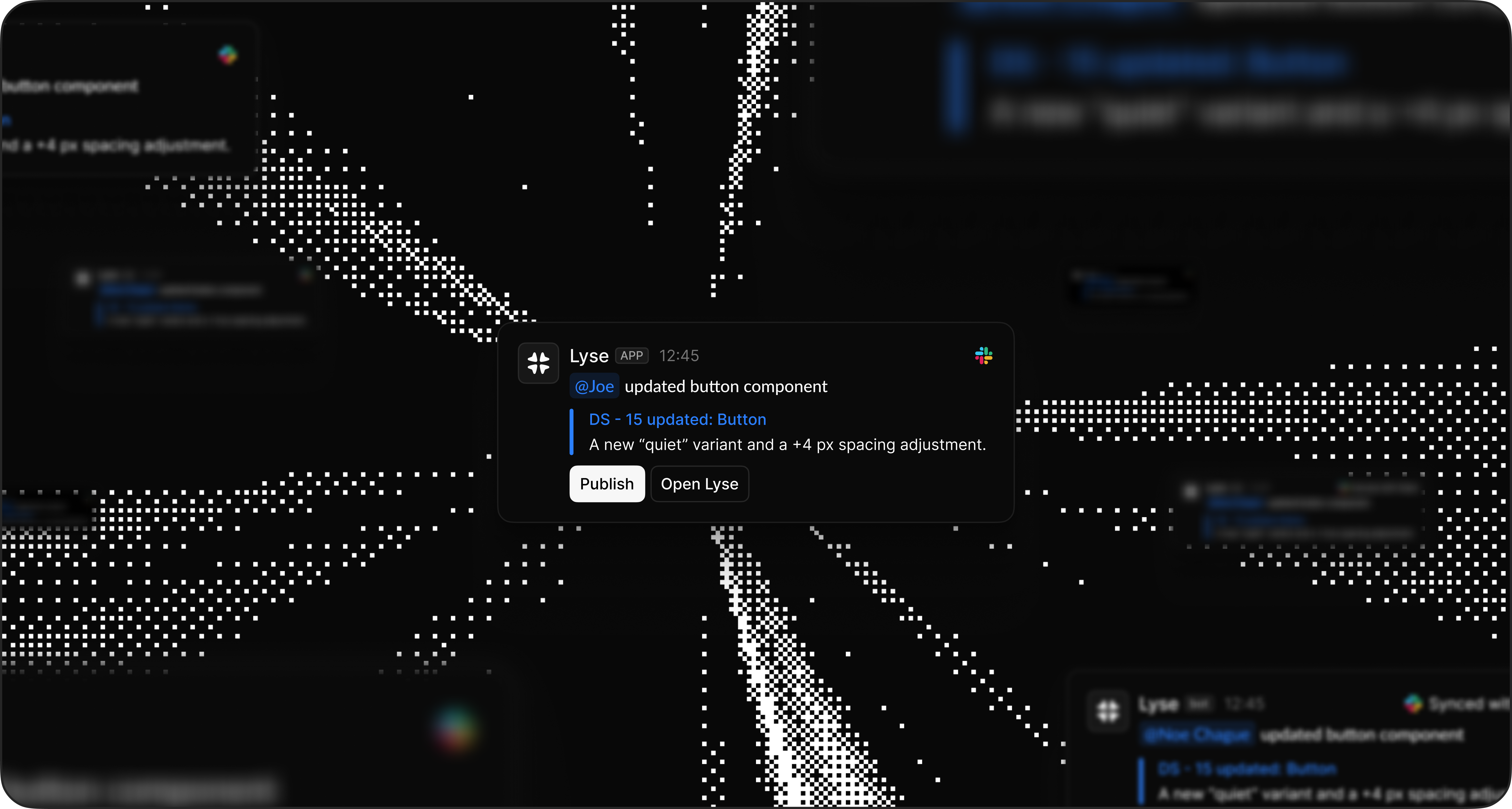
Stay informed without switching tools. When you publish a Figma library, Lyse sends a notification to your selected Slack channel. The message includes a preview of all generated tasks so your team knows what changed.Setup
Configure notifications in minutes.1
Connect Slack
Follow the Slack integration guide to connect your workspace. During setup, select the channel where you want to receive Figma publish notifications.
2
Connect Figma
Follow the Figma integration guide to connect your design library.
3
Publish your library
Next time you publish a Figma library, a notification appears in your selected Slack channel.
What you receive
Each notification shows what changed. When a library is published, the Slack notification includes:- Library name that was published
- Number of tasks generated from the changes
- Preview of each task with title and source component
- Link to your inbox to review and publish tasks
Publishing from Slack
Publish quickly depending on the number of changes.Single component
Single component
When only one component is published, you can publish the task directly from Slack without opening Lyse.
Multiple components
Multiple components
When two or more components are published, review them in your Lyse inbox to publish in batch.
Pro plan
Pro plan
Enable auto-generation to publish tasks directly to your issue tracker. No review needed, tasks flow automatically from Figma to Linear, GitHub, Jira, or GitLab.
Tips
Get the most out of notifications.Choose the right channel
Pick a channel where your design and development team collaborate. Notifications work best when the right people see them.Review from Slack
Click the link in the notification to jump directly to your Lyse inbox. Review and publish tasks in seconds.Troubleshooting
Something not working? Check these common issues.No notification received
- Verify Slack is connected in Integrations** > Slack**
- Check that you selected a notification channel during setup
- Make sure your Figma library is connected and you published it (not just saved)
Wrong channel
- Go to Integrations** > Slack** to change your notification channel